> ## Documentation Index
> Fetch the complete documentation index at: https://docs.specode.ai/llms.txt
> Use this file to discover all available pages before exploring further.
# Integrations
Your app comes with Convex already integrated. Convex handles all the back-end ops for your health app. You only need to configure any additional third-party services.
## How Integrations Work
Adding an integration to your Specode app follows this workflow:
Describe the integration in your chat. For example:
* "Add Twilio SMS notifications when appointments are confirmed"
* "Integrate Stripe to collect copay payments at checkout"
* "Pull lab results from \[Lab API] and display them in the patient dashboard"
Ask: "What API keys do I need to add in Project Settings for this integration to work?"
The AI will tell you exactly which keys to get from the external service.
Sign up or log into the external service (Twilio, Stripe, etc.) and copy the credentials the AI specified.
Navigate to your **project settings** (click the project name in the top left corner), scroll to the bottom of the Integrations section, and add your key/value pairs.
Return to the chat and tell the AI you added the credentials: "I added my Twilio keys. Here are the values: \[paste keys]. Can you verify the integration works?"
The AI will execute or test the integration with your credentials.
**The AI guides you through the process.** It knows what credentials each service requires and can verify the integration is working once you've added them.
**This works for any service, not just the ones listed below.** Whether you need voice/speech (Deepgram, AssemblyAI), payments (Stripe, Square), messaging (Twilio, SendGrid), or any other third-party API - the Specode AI coder can walk you through the setup. Just describe what you want in the chat and it will tell you which credentials to get and where to add them. The pre-configured integrations below are listed for convenience, but they are not the only ones supported.
## Pre-configured Integrations
Follow the steps below to add common integrations one-by-one.
## 1. CometChat Video Integration
**What it's for**: Powers HIPAA-compliant video appointments between patients and healthcare providers.
Contact CometChat to set up a HIPAA-compliant subscription for healthcare use. Or create a free account for testing purposes (no PHI!) at cometchat.com.
Once approved, you'll receive your credentials from the CometChat dashboard (left-side menu > Application > Credentials):
* `App ID` → e.g. `1670574c0951d3ac2`
* `Region` → `us` (in lowercase)
* `Auth Key` → e.g. `2cfa119703d62ed75774da4e33f9f96f85fdf96f`
* `Rest API Key` → e.g. `393a5593ceb9b9a638524fedad6f54151fc2019c`
Add the CometChat credentials to your Specode project settings.
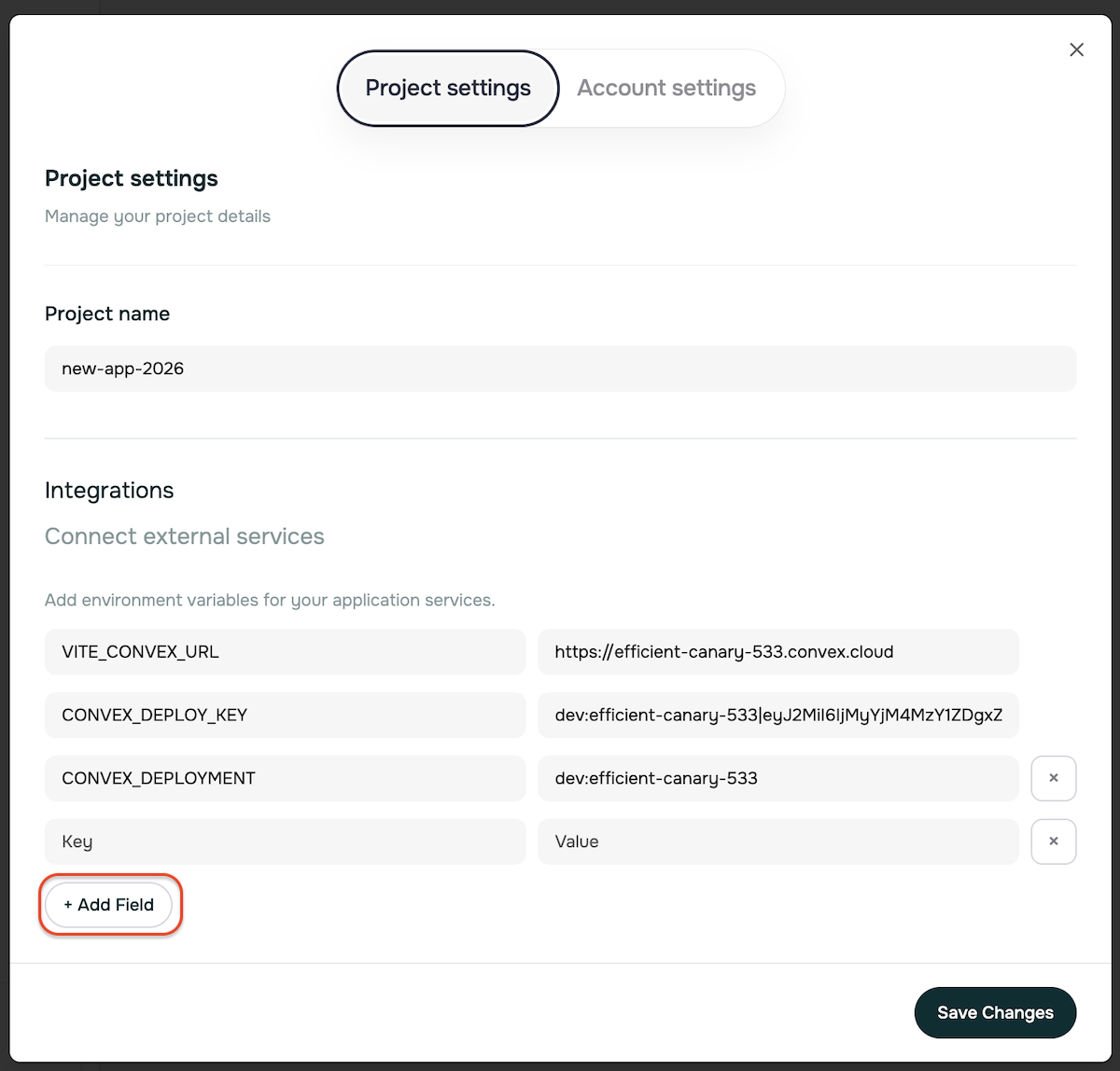 Press the "Add Field" button a few times and make sure you have 4 empty Key/Value field. Then fill them with CometChat credentials and press Save.
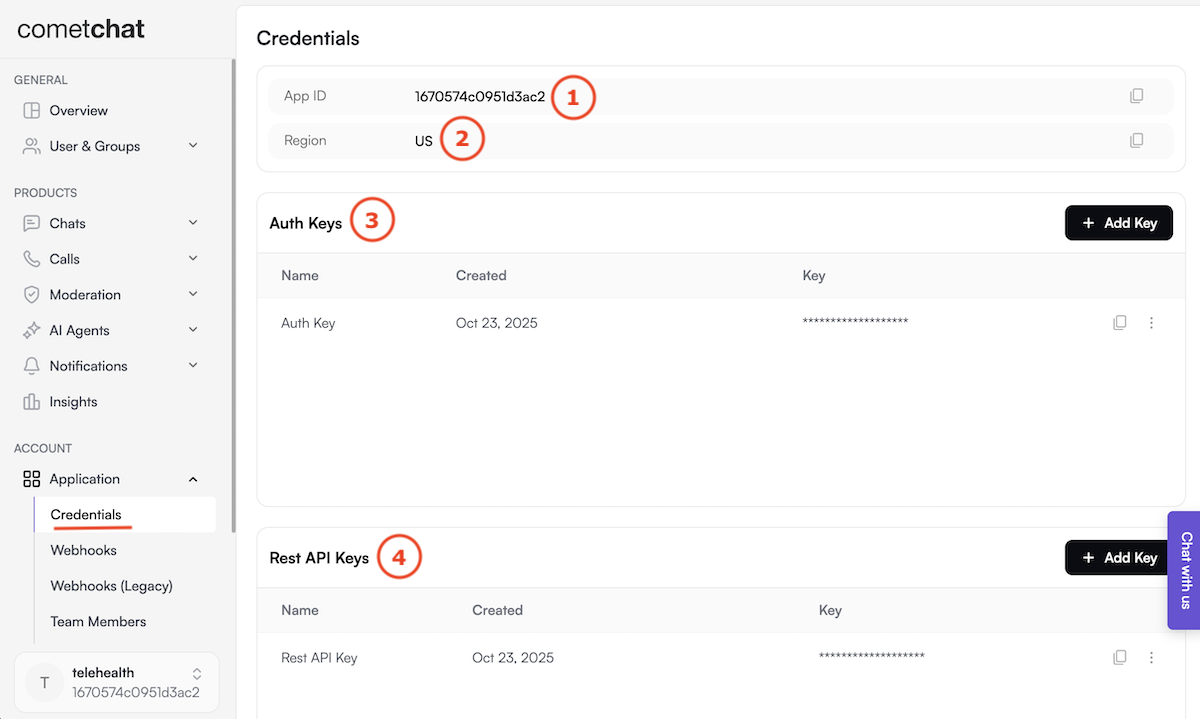 Ask AI what exactly you should insert in the corresponding key fields for each of the 4 ComatChat values that you copy from CometChat Credentials dashboard.
**HIPAA Compliance Required**: Standard CometChat accounts are not HIPAA-compliant. You must specifically request and pay for HIPAA-compliant video calling services before going live with patient video consultations.
## 2. Telegra Integration (Optional)
**What it's for**: Provides telehealth and remote monitoring capabilities for healthcare providers.
Reach out to Telegra for healthcare platform access
Once approved, you'll receive your credentials:
* `Telegra URL` → `Telegra_URL`
* `API Email` → `Telegra_API_EMAIL`
* `API Password` → `Telegra_API_PASSWORD`
Add all three Telegra credentials to your Specode project settings
## 3. Junction Health Integration (Optional)
**What it's for**: Integrates wearable device data and laboratory results for comprehensive patient monitoring.
Reach out to Junction Health for healthcare API access
Once approved, you'll receive your credentials:
* `API Key` → `JUNCTION_API_KEY`
Add the Junction Health API key to your Specode project settings
## 5. Payment Processing
**What it's for**: Processes payments for healthcare products, subscriptions, and services.
**Stripe restricts certain healthcare categories.** Stripe is the easiest option for non-clinical apps, but its [Restricted Businesses policy](https://stripe.com/legal/restricted-businesses) classifies telemedicine/telehealth and prescription pharmaceuticals as restricted categories requiring approval. Stripe also does not sign a BAA. The Specode team can help navigate Stripe's approval process for restricted healthcare categories. See our [Payment Processing Guide](/overview/configuration-deployment/healthcare-payment-processing) for full details on choosing the right processor.
### Stripe
Stripe is the default payment integration. It works out of the box for non-clinical apps (wellness, fitness, education, memberships). For apps in restricted healthcare categories (telehealth, prescribing, pharmacy), the Specode team can help facilitate Stripe approval - talk to us before switching processors.
Go to [stripe.com](https://stripe.com) and create a business account
In the Stripe Dashboard, switch to "Test Mode" for development
Navigate to Developers → API Keys and copy:
* `Publishable key` → `NEXT_PUBLIC_STRIPE_PUBLISHABLE_KEY`
* `Secret key` → `STRIPE_SECRET_KEY`
In Developers → Webhooks, add endpoint: `your-domain/api/webhooks/stripe`
Copy the signing secret → `STRIPE_WEBHOOK_SECRET`
Add all three Stripe credentials to your Specode project settings
### BAA-Signing Processors (For Telehealth, Rx, and Clinical Apps)
If your app involves telemedicine, prescribing, pharmacy services, or any flow where PHI may appear in the payment record, use a BAA-signing processor such as [PaymentCloud](https://paymentcloudinc.com/industries/telemedicine/), [Helcim](https://www.helcim.com/healthcare/), or [Corepay](https://corepay.net/). These processors support recurring billing, card-not-present transactions, and sign BAAs.
The Specode AI coder can integrate any payment processor that provides an API - just describe the integration in your chat and provide the credentials. See our [Payment Processing Guide](/overview/configuration-deployment/healthcare-payment-processing) for a full comparison of processors by use case.
## Adding Custom Services
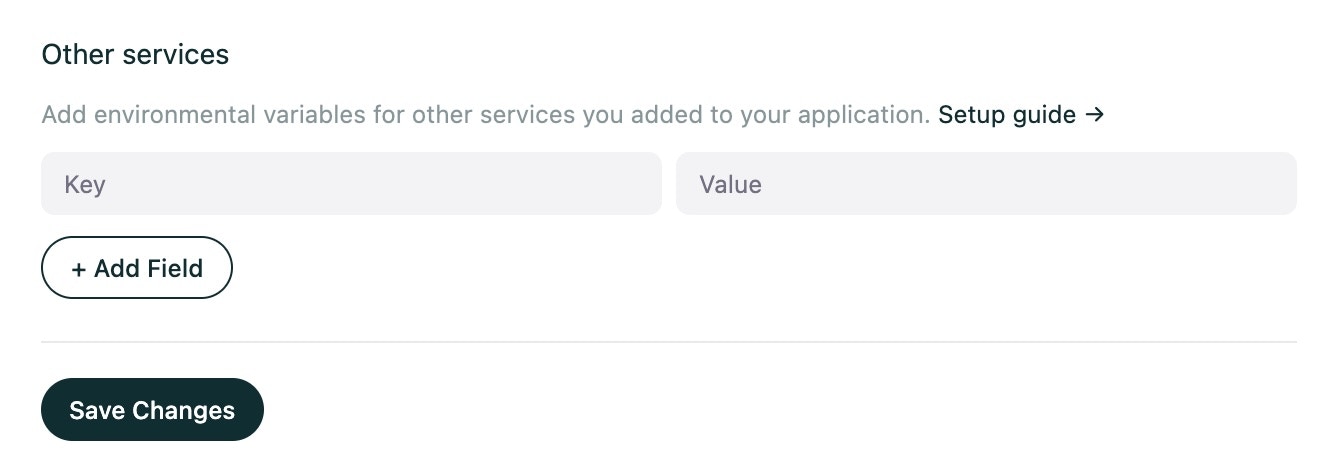
**Need to integrate with other services?** You can add custom environment variables for any additional APIs or services.
Go to your project settings in the top left corner of your screen
Scroll down to the bottom of the integrations section
Click the "Add Field" button to create new environment variables
Add your custom service credentials:
* Variable name (e.g., `CUSTOM_API_KEY`)
* Variable value (your actual API key or credential)
Ask AI what exactly you should insert in the corresponding key fields for each of the 4 ComatChat values that you copy from CometChat Credentials dashboard.
**HIPAA Compliance Required**: Standard CometChat accounts are not HIPAA-compliant. You must specifically request and pay for HIPAA-compliant video calling services before going live with patient video consultations.
## 2. Telegra Integration (Optional)
**What it's for**: Provides telehealth and remote monitoring capabilities for healthcare providers.
Reach out to Telegra for healthcare platform access
Once approved, you'll receive your credentials:
* `Telegra URL` → `Telegra_URL`
* `API Email` → `Telegra_API_EMAIL`
* `API Password` → `Telegra_API_PASSWORD`
Add all three Telegra credentials to your Specode project settings
## 3. Junction Health Integration (Optional)
**What it's for**: Integrates wearable device data and laboratory results for comprehensive patient monitoring.
Reach out to Junction Health for healthcare API access
Once approved, you'll receive your credentials:
* `API Key` → `JUNCTION_API_KEY`
Add the Junction Health API key to your Specode project settings
## 5. Payment Processing
**What it's for**: Processes payments for healthcare products, subscriptions, and services.
**Stripe restricts certain healthcare categories.** Stripe is the easiest option for non-clinical apps, but its [Restricted Businesses policy](https://stripe.com/legal/restricted-businesses) classifies telemedicine/telehealth and prescription pharmaceuticals as restricted categories requiring approval. Stripe also does not sign a BAA. The Specode team can help navigate Stripe's approval process for restricted healthcare categories. See our [Payment Processing Guide](/overview/configuration-deployment/healthcare-payment-processing) for full details on choosing the right processor.
### Stripe
Stripe is the default payment integration. It works out of the box for non-clinical apps (wellness, fitness, education, memberships). For apps in restricted healthcare categories (telehealth, prescribing, pharmacy), the Specode team can help facilitate Stripe approval - talk to us before switching processors.
Go to [stripe.com](https://stripe.com) and create a business account
In the Stripe Dashboard, switch to "Test Mode" for development
Navigate to Developers → API Keys and copy:
* `Publishable key` → `NEXT_PUBLIC_STRIPE_PUBLISHABLE_KEY`
* `Secret key` → `STRIPE_SECRET_KEY`
In Developers → Webhooks, add endpoint: `your-domain/api/webhooks/stripe`
Copy the signing secret → `STRIPE_WEBHOOK_SECRET`
Add all three Stripe credentials to your Specode project settings
### BAA-Signing Processors (For Telehealth, Rx, and Clinical Apps)
If your app involves telemedicine, prescribing, pharmacy services, or any flow where PHI may appear in the payment record, use a BAA-signing processor such as [PaymentCloud](https://paymentcloudinc.com/industries/telemedicine/), [Helcim](https://www.helcim.com/healthcare/), or [Corepay](https://corepay.net/). These processors support recurring billing, card-not-present transactions, and sign BAAs.
The Specode AI coder can integrate any payment processor that provides an API - just describe the integration in your chat and provide the credentials. See our [Payment Processing Guide](/overview/configuration-deployment/healthcare-payment-processing) for a full comparison of processors by use case.
## Adding Custom Services
**Need to integrate with other services?** You can add custom environment variables for any additional APIs or services.
Go to your project settings in the top left corner of your screen
Scroll down to the bottom of the integrations section
Click the "Add Field" button to create new environment variables
Add your custom service credentials:
* Variable name (e.g., `CUSTOM_API_KEY`)
* Variable value (your actual API key or credential)
 **Some Custom Integration Examples:**
* Electronic Health Record (EHR) systems
* Laboratory information systems
* Pharmacy networks
* Insurance verification services
* Custom healthcare APIs
**Need Additional Help?** If you encounter issues during setup, refer to our [Troubleshooting Guide](/overview/configuration-deployment/troubleshooting) or contact your project team for assistance with HIPAA-compliant service configuration.
**Some Custom Integration Examples:**
* Electronic Health Record (EHR) systems
* Laboratory information systems
* Pharmacy networks
* Insurance verification services
* Custom healthcare APIs
**Need Additional Help?** If you encounter issues during setup, refer to our [Troubleshooting Guide](/overview/configuration-deployment/troubleshooting) or contact your project team for assistance with HIPAA-compliant service configuration.